Get started with SuperBOL Studio
Install SuperBOL Studio, then write, compile, run and debug your first COBOL program in VS Code.
(Last update: Oct 27, 2026)
Install SuperBOL Studio, then write, compile, run and debug your first COBOL program in VS Code.
(Last update: Oct 27, 2026)
This guide takes about 15 minutes. You will install the tools, create a small project, compile and run a program, configure an existing project, and start a debugging session.
Keyboard shortcuts are given for Windows and Linux; on macOS, use Cmd
instead of Ctrl.
VS Code: download the .deb or .rpm package from
code.visualstudio.com, or:
sudo snap install code --classic
GnuCOBOL and GDB, from the packages of your distribution:
# Debian, Ubuntu
sudo apt install gnucobol gdb
# Fedora
sudo dnf install gnucobol gdb
# Arch Linux (GnuCOBOL from the AUR, e.g. with yay)
yay -S gnucobol
sudo pacman -S gdb
# NixOS (temporary shell)
nix-shell -p gnucobol gdb
On NixOS, to install them permanently, add gnucobol and gdb to
environment.systemPackages in configuration.nix.
VS Code: download it from code.visualstudio.com, or:
winget install Microsoft.VisualStudioCode
GnuCOBOL and GDB: our all-in-one installer contains GnuCOBOL, a C compiler and GDB. Choose GnuCOBOL 3.2 (stable) or GnuCOBOL 4.0-alpha.
VS Code: download it from code.visualstudio.com, or with Homebrew:
brew install --cask visual-studio-code
GnuCOBOL:
brew install gnucobol
Then check in a terminal that everything is installed:
cobc --version
gdb --version
If your computer has Internet access, either:
Ctrl+Shift+X), search for
SuperBOL and click Install.code --install-extension OCamlPro.SuperBOL
If you have the .vsix file of the extension, either:
Ctrl+Shift+X), click the ...
menu at the top of the view, then Install from VSIX… and select the
file.code --install-extension superbol-<version>.vsix
In the Extensions view (Ctrl+Shift+X), check that SuperBOL Studio is
installed and enabled.
File > Open Folder....hello.cob.Type the following program. It is written in fixed format, the historical format: division names start at column 8 and statements at column 12.
       IDENTIFICATION DIVISION.
       PROGRAM-ID. HELLO.
       PROCEDURE DIVISION.
           DISPLAY "Hello"
           STOP RUN.
As you type, SuperBOL Studio completes keywords and names. Hover over a name
to see its definition, or Ctrl+click it to jump to it.
Ctrl+Shift+B and choose SuperBOL: build module. A module hello.so
(hello.dll on Windows) appears at the root of the project.Ctrl+F5 (Run > Run Without Debugging) to run the program. It
displays Hello.You can also compile and run from the integrated terminal
(Ctrl+Shift+M, then the Terminal tab):
cobc -x hello.cob    # produces an executable
./hello              # hello on Windows
Compilation errors are listed in the Problems panel (Ctrl+Shift+M): click
an error to jump to the faulty line.
For an existing project, SuperBOL Studio needs to know how the code is written: where the copybooks are, which source format and which COBOL dialect are used.
Open the settings of the extension: Extensions view, gear icon of
SuperBOL Studio, then Settings. Choose the Workspace tab so that
the settings only apply to the current project. They are saved in
.vscode/settings.json, for example:
{
    "superbol.cobol.dialect": "mf",
    "superbol.cobol.sourceFormat": "fixed",
    "superbol.cobol.copybooks": [
        { "dir": "cpy" }
    ],
    "superbol.forceSyntaxDiagnostics": true
}
| Setting | Meaning | cobc equivalent |
|---|---|---|
superbol.cobol.dialect |
Dialect name (mf, ibm, …) or path to a .conf file |
-std=mf or --conf=file.conf |
superbol.cobol.sourceFormat |
Source format (fixed, free, …) |
-fformat=fixed |
superbol.cobol.copybooks |
Directories where copybooks are searched | -I cpy |
By default, syntax errors are only reported for the COBOL 85 dialect. Enable
superbol.forceSyntaxDiagnostics (Force Syntax Diagnostics) to see them
for other dialects.
Debugging requires GDB (check with gdb --version) and a program built
in debug mode, with the task SuperBOL: build module (debug)
(Ctrl+Shift+B).
F9 on the current line.F5. The program stops on the breakpoint.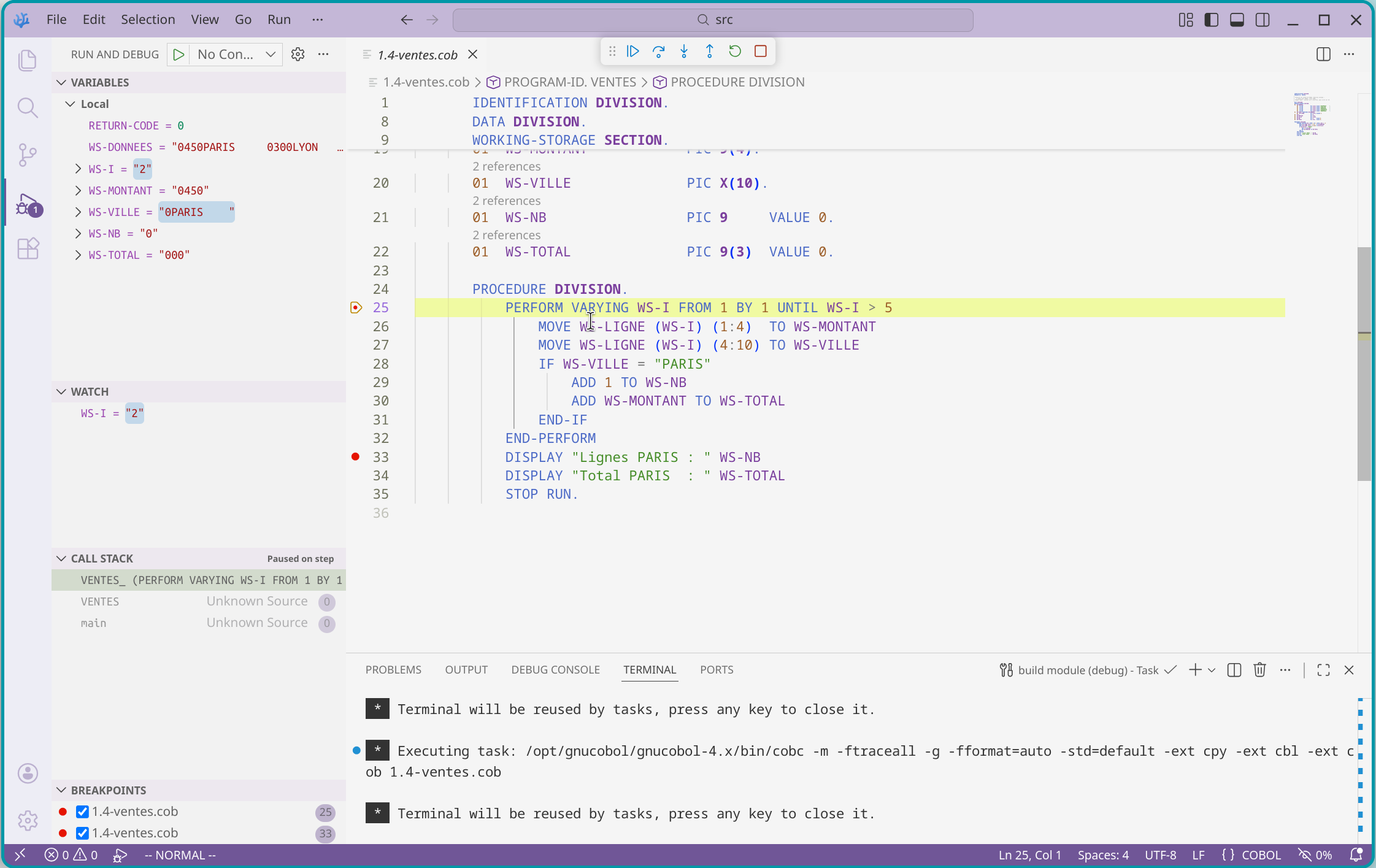
| Action | Shortcut |
|---|---|
| Set or remove a breakpoint | F9 |
| Continue to the next breakpoint, or to the end of the program | F5 |
Step over: run the line, including a whole PERFORM or CALL |
F10 |
Step into: on a PERFORM or CALL, stop at its first line |
F11 |
| Stop the debugging session | Shift+F5 |
The Variables view shows the program’s data; hovering over a variable in the source also shows its value.
cobc is not foundThe PATH does not contain GnuCOBOL. On Windows, close all terminals and
VS Code after installing, then reopen them.
Add its directory to superbol.cobol.copybooks (and to -I for cobc).
The dialect or the source format does not match the code: check
superbol.cobol.dialect and superbol.cobol.sourceFormat.
Enable superbol.forceSyntaxDiagnostics.
The program was not built in debug mode.
If your problem is not listed, cobc --info displays the configuration of
GnuCOBOL (C compiler, search paths, libraries): include it when you ask for
help.
The user manual describes all the features and settings of SuperBOL Studio. To report a bug or suggest an improvement, open an issue on GitHub.
Choosing SuperBOL means partnering with experts who focus on delivering maximum value.
The success of your COBOL project lies at the crossroads between expert integration and cutting-edge technology.
Contact us to schedule a technical meeting and build your success trajectory together.
Schedule a Meeting